How to Display Google Sheets Data on Your Shopify Store
How to Display Google Sheets Data on Your Shopify Store
Shopify merchants often manage product data, size charts, ingredient lists, and specifications in Google Sheets. The challenge: getting that data onto your product pages or collection pages in a way that looks professional and updates automatically without a developer or a paid Shopify app.
Here's the fastest way to do it — no Shopify app required, no developer, no monthly app fee.
Common Use Cases
• Size and measurement charts — display sizing for clothing, shoes, or equipment
• Ingredient or specification tables — nutritional info, materials, or technical specs
• Comparison tables — compare product variants side by side
• Inventory or availability tables — show stock levels or available options
• Wholesale pricing tables — display tiered pricing for B2B customers
• FAQ tables — structured question and answer tables for product pages
How It Works
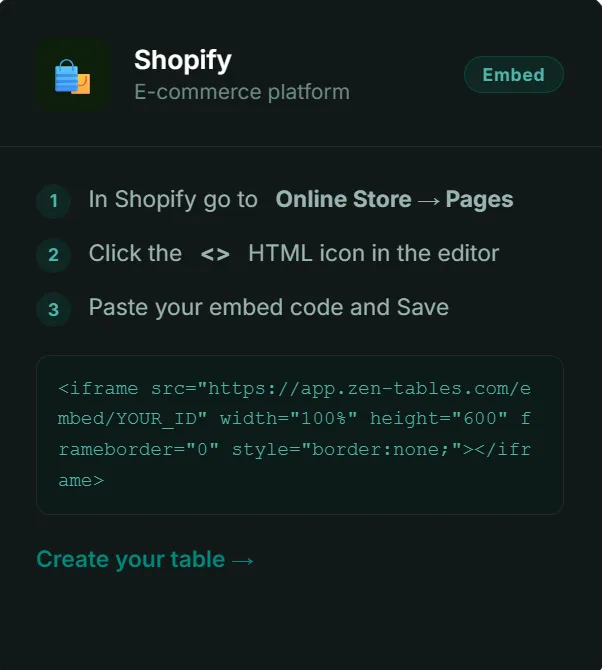
zen-tables connects to your Google Sheet and generates a styled, responsive table with an iframe embed code. You paste that code directly into any Shopify page using the HTML editor. The table updates automatically whenever the sheet changes — no Shopify updates required.
Step-by-Step Setup
Go to zen-tables.com and sign in (free plan available)
Click New Table and paste your Google Sheet URL
Style the table to match your Shopify theme — colors, fonts, borders, header style
Click Get Embed Code and copy the iframe snippet
5.In Shopify, go to Online Store → Pages (or Products → select a product)
6.Click the HTML editor icon ( < > ) in the page editor
7.Paste the iframe embed code where you want the table to appear
8.Click Save
Your table is now live on your Shopify store and updates automatically when you edit the Google Sheet.
For Product Pages Specifically
If you want the table on a specific product page, add it to the product description using the same HTML editor approach. For stores where many products share the same table — for example, a universal size chart — add it to your theme's product template once and it will appear across all relevant product pages.
Mobile Responsive
zen-tables generates fully responsive tables. On mobile devices, wide tables become horizontally scrollable so no data is cut off. This is essential for Shopify stores where a significant portion of traffic comes from mobile — typically 60-70% for most DTC brands.
Frequently Asked Questions
Do I need a Shopify app to use zen-tables?
No. zen-tables works via a simple iframe embed code you paste into Shopify's HTML editor. No app installation required, no monthly Shopify app fee.
Will the table look good on my Shopify theme?
Yes. zen-tables lets you customize colors, fonts, borders, and spacing to match your Shopify theme exactly. You can also use ZenAI to auto-style the table by describing your brand.
Can I use this for my product description tables?
Yes. Paste the embed code into the HTML view of your product description. The table will appear inline within the product page content.
Does updating the Google Sheet affect my Shopify store's performance?
No. The table loads asynchronously and doesn't affect your store's page speed score. Updates to the Google Sheet appear in the table in real time without any impact on store performance.
Start Free
Create your first table free at zen-tables.com. Free plan includes 3 tables. See the full Shopify integration guide at zen-tables.com/integrations