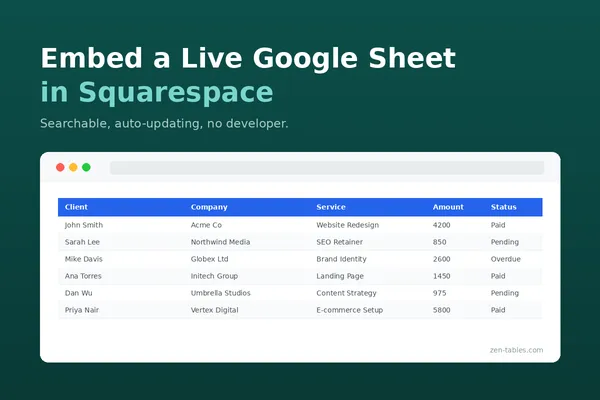
How to Embed a Google Sheet in Squarespace (Live, Searchable, No Developer)
How to Embed a Live Google Sheet in Squarespace
A photographer we work with kept a spreadsheet of open shoot dates and job listings. Every time it changed, she emailed her web guy, waited a day, and paid for the edit. The data was already in a Google Sheet — it just wasn't on her website.
That's what this solves. You keep editing the spreadsheet you already use. The table on your Squarespace site updates with it. No developer, no plugin, no re-publishing.
Setup takes about ten minutes.
Before You Start: Check Your Plan
Squarespace Code Blocks require a Business plan or higher. Personal plan users cannot add embedded code to a page — this is a Squarespace restriction, not a zen-tables one.
Check yours under Settings → Billing & Account. If you're on Personal, you'll need to upgrade before any of the steps below will work.
One more thing: if your site is still on a free trial, Squarespace disables embedded code blocks entirely. Your table will show correctly in the editor but won't appear on the published page until you're on an active paid plan.
Step 1 — Make Your Google Sheet Readable
This is the step people skip, and it's the reason most tables fail to load.
1.Open your Google Sheet
2.Click Share in the top right
3.Under General access, change 'Restricted' to 'Anyone with the link'
4.Set the role to Viewer
5.Click Copy link
To confirm it worked, paste the link into an incognito window. If the sheet opens and shows your data, you're set. If it asks you to sign in or request access, repeat step 3.
Your sheet needs column headers in row 1 and data underneath. That's the only structure required.
Step 2 — Connect the Sheet to zen-tables
1. Log in to zen-tables and create a new table
2. Paste your Google Sheet URL into the Google Sheets URL field
3. Click Save Sheet URL
4. Click Preview My Table to confirm your rows loaded
Step 3 — Turn On Search and Filters
If your table has more than a dozen rows, visitors will want to search it. In the Search & Filter section of the table editor, enable:
Enable Search — adds a keyword search box above the table
Enable Filter — adds dropdown filters for each column
Turn these on before generating your embed code. If you change them later, you'll need to regenerate the code and re-paste it into Squarespace.
Step 4 — Generate Your Embed Code
1. Scroll to the Embed Code section
2. Set a Height in pixels — start with 600 for a table of around 10 rows, higher for longer tables
3. Click Generate Embed Code
4. Click Copy to Clipboard
Your snippet will look like this:
<iframe src="https://app.zen-tables.com/embed/YOUR_TABLE_ID?search=yes&filter=yes&show_branding=yes"
width="100%" height="600" frameborder="0"
style="border:none;" loading="lazy"></iframe>
Copy it rather than retyping it. The table ID is a long string, and a single wrong character produces a blank table.
Step 5 — Add a Code Block in Squarespace
1. Open the page where you want the table, or create a new one under Pages → + → Blank Page
2. Click EDIT
3. Click Add Section and choose a blank section
4. Hover inside the section and click the + button
5. Search for 'Code' and select the Code Block
6. Delete the placeholder content
7. Paste your zen-tables snippet
8. Leave Display Source Code switched off
9. Click Apply
That eighth step matters. If Display Source Code is on, visitors see the raw HTML as text instead of your table.
Step 6 — Size the Block
The Code Block starts narrow. Drag the handle on its right edge out to the full width of the section, or your table will sit in a cramped column with most of the page empty around it.
Then click SAVE.
Step 7 — Check It Live
Squarespace renders code blocks inside the editor, but always confirm on the published page.
Publish the page, open the live URL, then open it again in an incognito window.
That last part matters more than it sounds. When you're signed in to Google and zen-tables, a table can appear to work even when the underlying sheet isn't actually public. Incognito shows you what a real visitor sees.
A Note on Mobile
Open the published page on your phone. The page itself should not scroll sideways — if it does, your table is too wide for the container.
Keep tables to four or five columns for the best mobile experience. Six or more columns at phone width will push the rightmost column off screen. If you need more columns than that, consider splitting the data across two tables.
If you see a large blank gap under the table, or rows cut off at the bottom, adjust the height value: change the number in zen-tables, regenerate, and re-paste.
Frequently Asked Questions
Why does my table say 'Invalid sheet URL'?
Your Google Sheet isn't publicly readable. Go back to Step 1 and test the sheet link in an incognito window. If it asks you to sign in, that's the problem.
The table works for me but not for my visitors. Why?
Same cause as above. Your browser session has access to the sheet; theirs doesn't. Always verify in incognito before you consider a table finished.
I see raw HTML on my page instead of a table.
Display Source Code is switched on in the Code Block settings. Turn it off.
The Code Block option is missing.
You're on the Personal plan. Code Blocks require Business or higher.
Nothing appears on my published page.
If your site is on a free trial, Squarespace disables embedded code blocks. You'll need an active paid plan.
Does the table update automatically?
Yes. Edit a cell in your Google Sheet, refresh your website, and the change is there. No re-publishing needed.
Does this work on Squarespace 7.0 and 7.1?
Yes. The Code Block exists in both. The steps above show 7.1's Fluid Engine editor; in 7.0 you add the block directly rather than creating a section first.
Get Started Free
zen-tables has a free plan with 3 tables included. Connect a Google Sheet, generate your embed code, and paste it into Squarespace — no card required to try it.
Start at zen-tables.com.