How to Embed Google Sheets in Framer (No Code Required)
If you've built a site in Framer and need to display live data from Google Sheets — a pricing table, product catalog, job board, or directory — you've probably hit a wall. Framer's native CMS handles content well, but displaying a raw Google Sheet on your site without it looking like a clunky spreadsheet is a different problem entirely.
This guide walks you through the fastest way to embed a Google Sheet as a beautiful, styled table on any Framer site — without touching a single line of code.
Why You Can't Just Paste a Google Sheet into Framer
Framer's built-in Google Sheets plugin is designed for CMS syncing — importing content into Framer's data layer. It's not built for displaying a live table directly on a page. If you embed a raw Google Sheet iframe, users see the full spreadsheet UI: row numbers, column headers, formula bars. It looks unprofessional and doesn't match your site design.
What most Framer designers actually want is a styled table that updates automatically when the Sheet changes, looks great on mobile, and matches their brand — without a developer.
The Solution: zen-tables
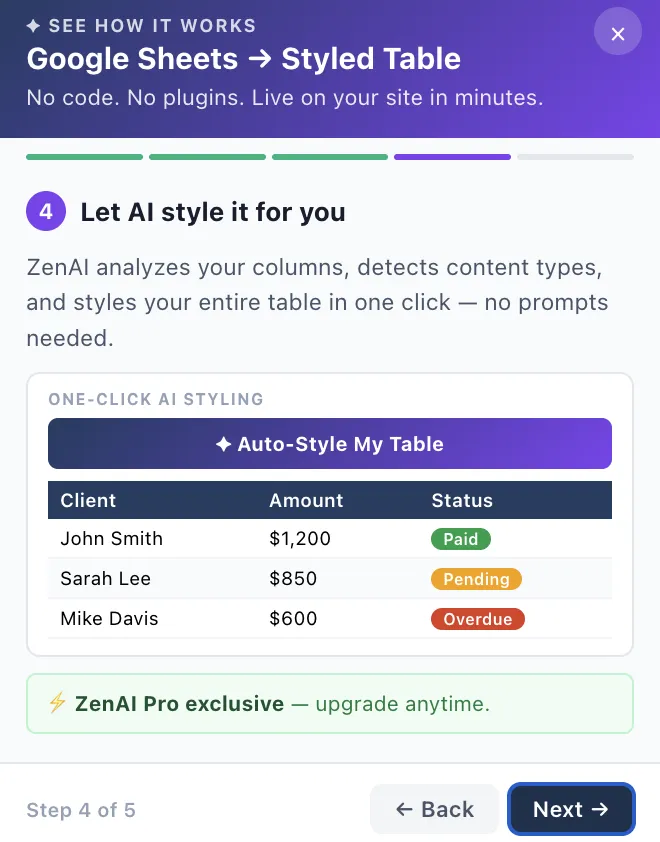
zen-tables connects to your Google Sheet and generates a styled, responsive embed table you can drop into any Framer Embed component. The table updates automatically whenever your Sheet changes. You can style it — colors, fonts, borders, badges — to match your Framer site exactly. You can also use ZenAI, zen-tables' AI styling feature, to style your table automatically by describing what you want in plain English.
Step-by-Step: Embed Google Sheets in Framer
Go to zen-tables.com and sign in (free plan available)
Click New Table and paste your Google Sheet URL
Style your table — choose colors, fonts, and row styling, or click Auto-Style with ZenAI
Click Get Embed Code and copy the iframe snippet
In Framer, open your project and navigate to the target page
Add an Embed component from the Insert menu
Paste the iframe code into the Embed component → click Save
Preview and publish your Framer site
Your table is now live and updates automatically whenever you edit the Google Sheet. No re-publishing in Framer needed.
What You Can Display
zen-tables works for any structured Google Sheets data. Common use cases on Framer sites include:
Pricing tables with plan comparisons
Job boards and hiring directories
Product catalogs and inventory lists
Event schedules and availability calendars
Client testimonials or team directories
Real estate listings and property data
Tips for a Seamless Framer Integration
Set your Embed component width to 100% so the table is responsive on mobile
Use zen-tables' color picker to match your Framer site's brand colors exactly
Enable Search & Filter (Pro plan) so visitors can search and sort the table
Use the Chrome extension to detect your Google Sheet and pre-load it into zen-tables automatically
Free Plan vs Pro vs ZenAI Pro
zen-tables free plan includes 3 tables — enough to get started. The Pro plan ($49/month) unlocks 50 tables, search and filter functionality, and custom branding removal. The ZenAI Pro plan ($99/month) unlocks unlimited tables plus adds AI-powered styling with custom prompts and Auto-Style.
Frequently Asked Questions
Does the table update automatically when I edit my Google Sheet?
Yes. zen-tables reads your Google Sheet in real time. Any changes you make to the sheet appear in the embedded table automatically — no re-publishing your Framer site required.
Do I need to know how to code?
No. The entire process is no-code. You paste one iframe code snippet into Framer's Embed component and you're done.
Can I use zen-tables on a Framer site I built for a client?
Yes. You can create tables under your zen-tables account and embed them on any Framer site. The Pro plan removes zen-tables branding so the embed looks fully custom for your client.
What happens if the Google Sheet is deleted?
If the source Google Sheet is deleted or access is removed, the embedded table will stop displaying data. We recommend keeping your Google Sheets organized and sharing them with a service account if multiple team members manage the data.
Get Started Free
Go to zen-tables.com to create your first table for free. The Chrome extension makes the workflow even faster — it detects your Google Sheet automatically and pre-loads it into zen-tables with one click. See the full integration guide at zen-tables.com/integrations