Connect ZenTables to Claude
The ZenTables Claude connector lets you manage your website tables just by asking Claude. Claude can list your tables, turn a Google Sheet into an embeddable table, give you the embed code, and restyle a table with a color theme, all from a chat.
Before you start
You'll need a ZenTables account (the free plan works) and a paid Claude plan (Pro, Max, Team or Enterprise).
Step 1 — Copy your ZenTables API key
- Log in at app.zen-tables.com.
- Open your account settings and copy the value in the API Key field.
- Copy your API key. Keep it private, like a password.
Step 2 — Add ZenTables to Claude
- In Claude, open Settings → Connectors → Add custom connector.
- Name: ZenTables
- URL:
https://zentables-mcp.zentables.workers.dev/mcp
- Leave the other settings as they are and click Add.
Step 3 — Connect your account
- Click Connect next to ZenTables.
- On the Connect ZenTables page, paste your API key and click Connect.
- You're back in Claude and ZenTables is connected.
What Claude can do
| Tool | What it does |
|---|---|
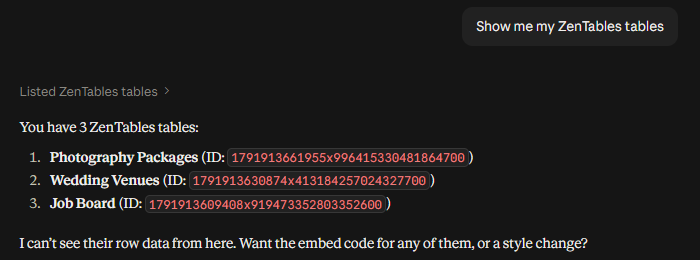
| List tables | Shows your tables' names and IDs. |
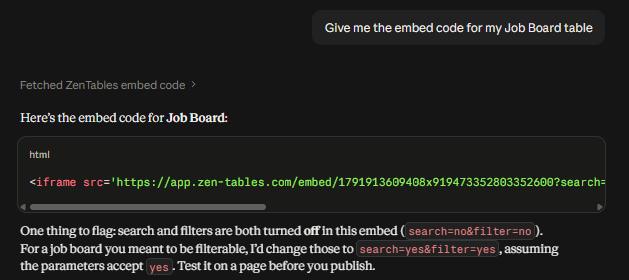
| Get embed code | Gives you the HTML snippet to put a table on your website. |
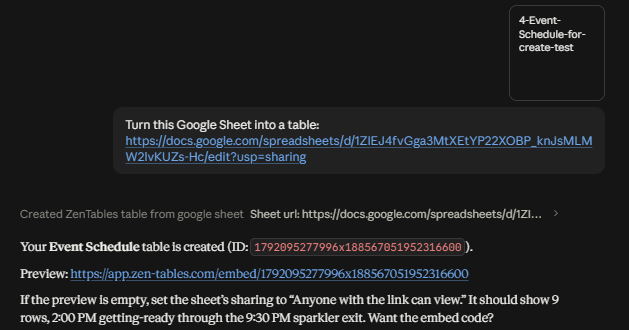
| Create table from Google Sheet | Turns a Google Sheet link into a new table. The sheet must be shared as "Anyone with the link can view". |
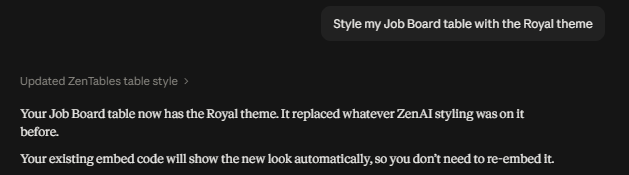
| Update table style | Applies a color theme: Corporate, Modern, Ocean, Forest, Royal or Minimal. |
Example prompts
1. "Show me my ZenTables tables"
2. "Turn this Google Sheet into a table: [sheet link]"
3. "Give me the embed code for my Job Board table"
4. "Style my Job Board table with the Royal theme"
Troubleshooting
- "That key didn't work": copy the whole API key again from ZenTables, with no extra spaces.
- The new table is empty: set the Google Sheet's sharing to "Anyone with the link can view".
- "Table not found for this account": ask Claude to list your tables first, then use one of those names.
- To disconnect: in Claude, go to Settings → Connectors → ZenTables → Disconnect.
Privacy
The connector stores only your API key (encrypted) so it can call ZenTables for you. It never stores your Claude conversations. See our Privacy Policy.
Support
Questions or problems? Email [email protected].